How to Choose a Laptop Docking Station: USB-C vs Thunderbolt Explained
Published How we research
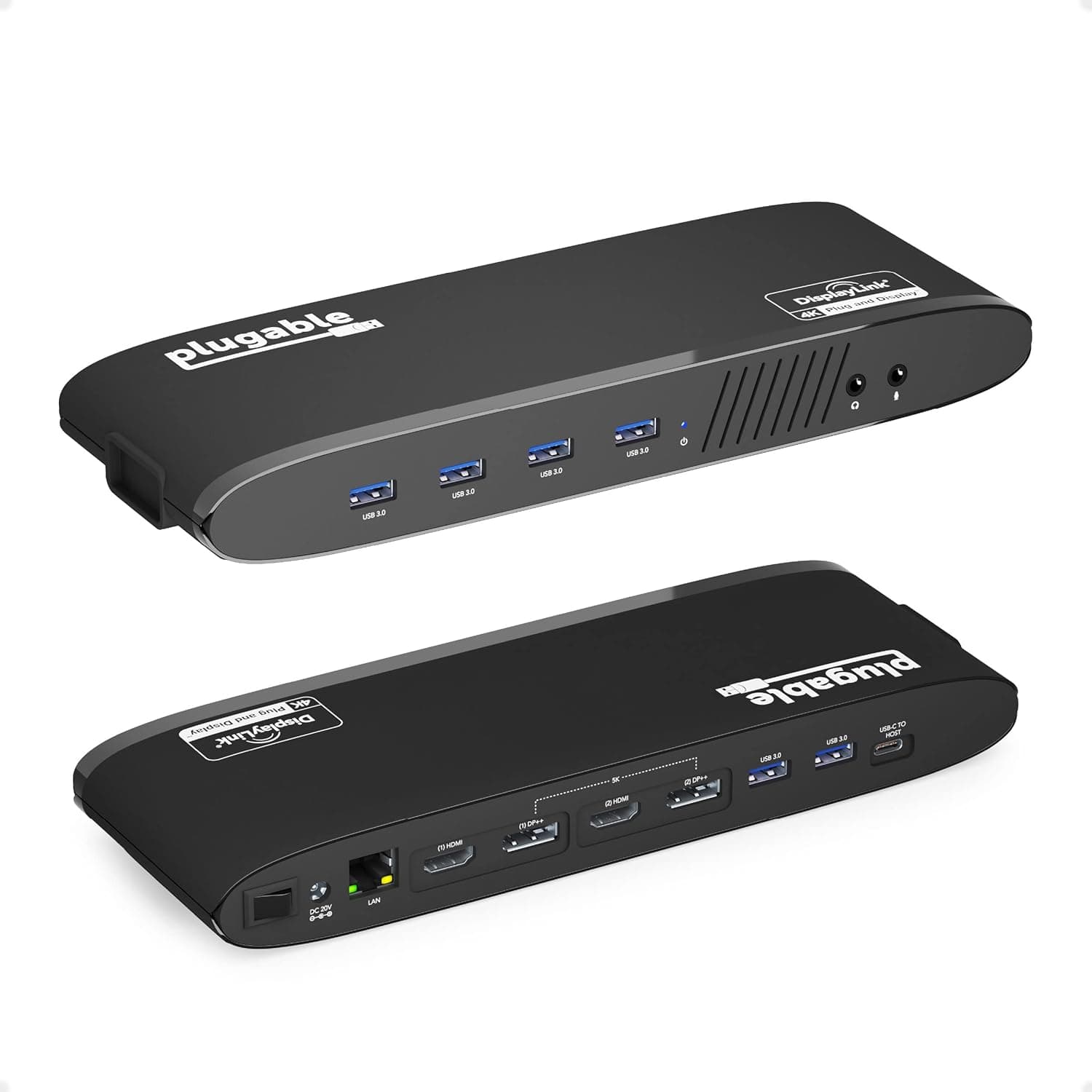
A docking station turns one cable from your laptop into a full desk: power, monitors, keyboard, mouse, Ethernet and storage. To choose one, check three things against your laptop: whether its USB-C port carries video, how many watts of charging the dock delivers, and how many displays at what resolution the dock can drive. Everything else, like card readers and extra USB ports, is secondary.
Products from this article
The highest-scoring picks from the buying guides this article links to. Scores are our editorial assessment, not customer ratings.
+ Works over USB-C or USB 3.0, so older laptops can use it too
From our guide: Best Laptop Docking Stations for WFH (2026)
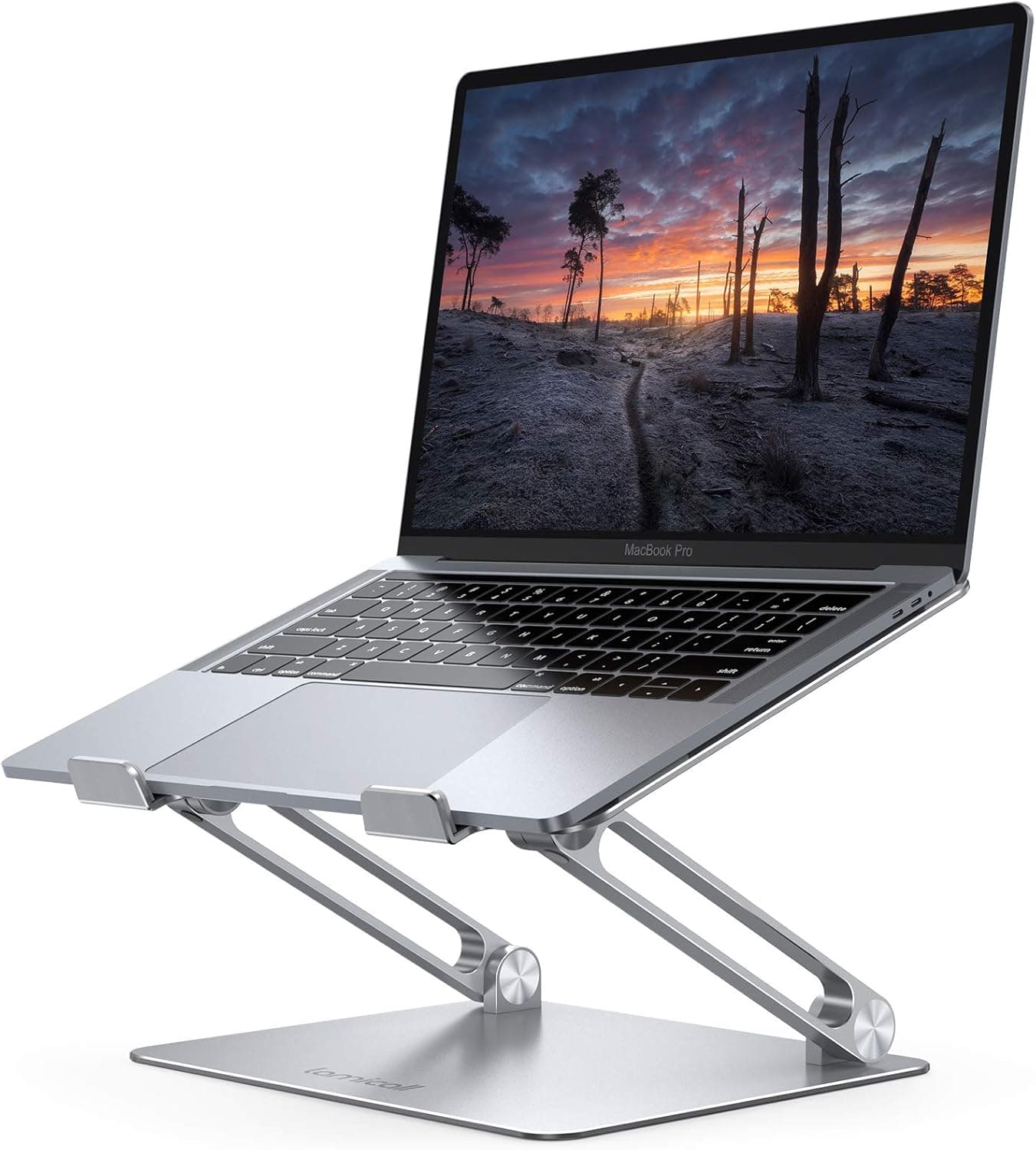
+ Foldable frame packs into a backpack for cafes and coworking spaces
From our guide: Best Laptop Stands for Home Offices (2026)
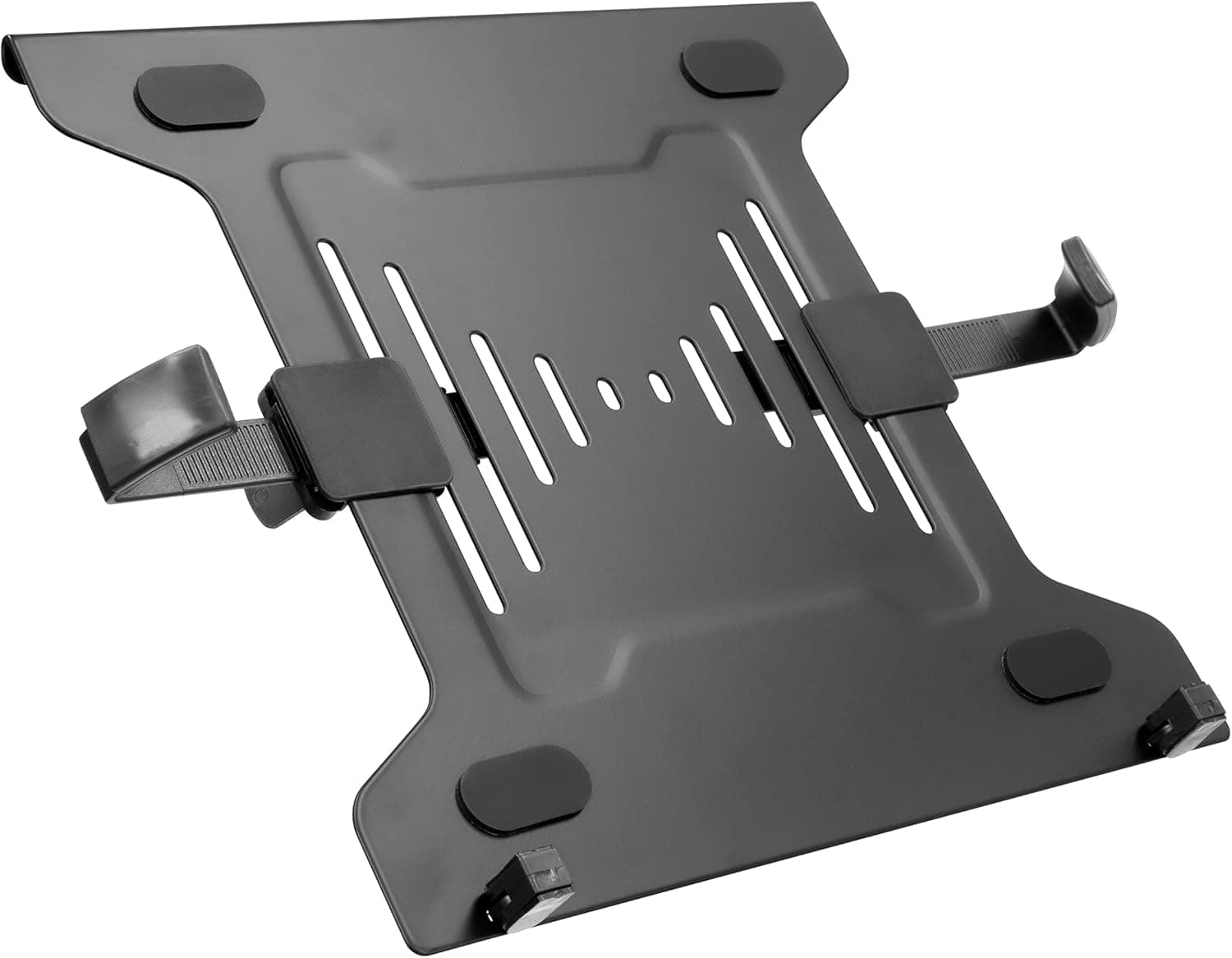
+ Turns an existing monitor arm into a floating laptop holder
From our guide: Best Sit-Stand Laptop Mounts for Home Offices (2026)
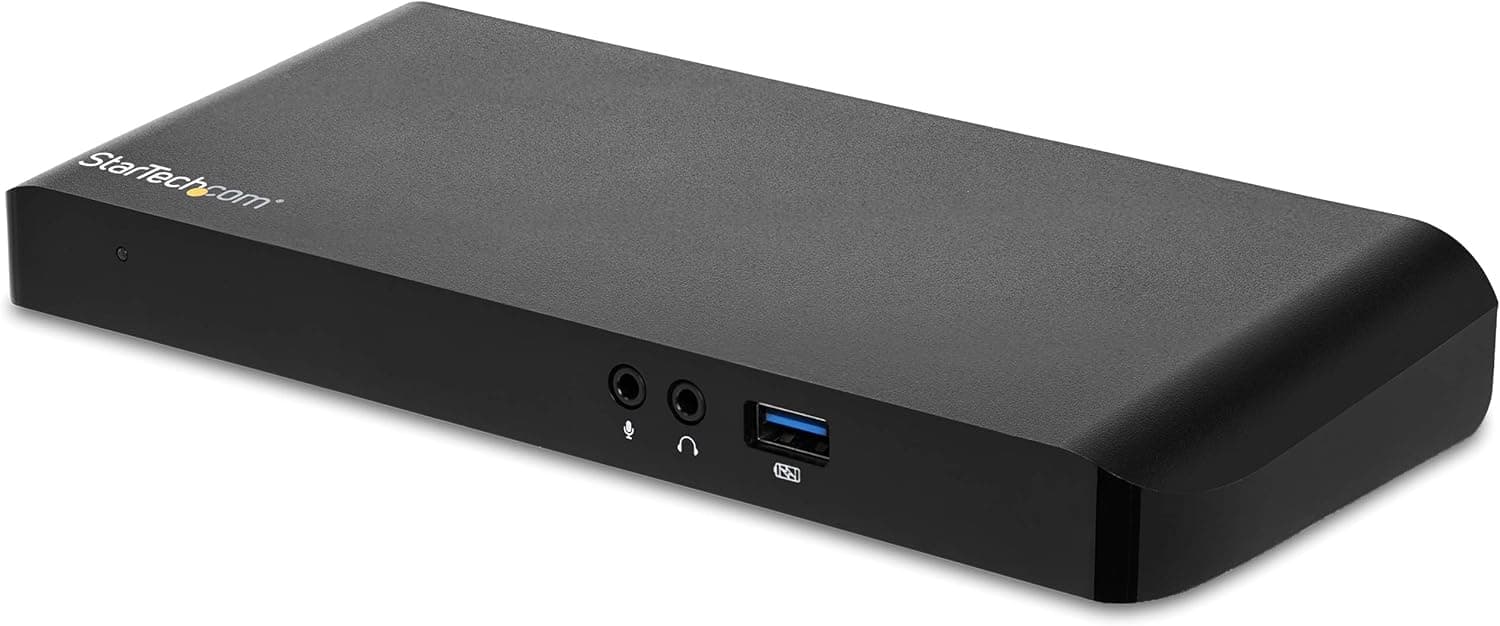
+ 60W PD charges many laptops through the same single USB-C cable
From our guide: Best Laptop Docking Stations for WFH (2026)
What a docking station does
A dock connects to the laptop over a single cable, usually USB-C or Thunderbolt, and exposes a set of ports on the desk. The laptop sees the monitors, keyboard, wired network and USB devices as soon as you plug in, and the same cable can charge it.
This is different from a simple USB hub, which only adds USB ports. A true dock also handles video outputs and power, so you can unplug one cable and walk away with the laptop.
Docks also differ in how they power things. Some are bus-powered and rely entirely on the laptop, but most dedicated docks ship with their own power brick, which is what lets them charge the laptop while feeding several screens.
USB-C, Thunderbolt and USB4: what the port can do
Not every USB-C port can output video. Look for a DisplayPort logo, a Thunderbolt lightning symbol or the words DisplayPort Alt Mode in the laptop specs. A port with no video support will charge and move data, but a dock will not light up a monitor.
Thunderbolt 3 and 4 run at 40 Gbps and can drive two 4K displays on supported laptops. Standard USB-C docks use less bandwidth, so a common limit is one 4K monitor at 60 Hz, or two displays at lower resolution or refresh rates. USB4 sits in between and is built on the Thunderbolt protocol. A Thunderbolt dock works with a USB-C laptop port at lower capability, but a plain USB-C dock will not use Thunderbolt features.
A quick way to check: look up the laptop model's spec sheet, find the USB-C or Thunderbolt entry and read what it says about video output and charging. If the spec sheet is vague, the manufacturer support page usually lists supported dock types.
Power delivery wattage
The dock's power delivery rating should be close to your laptop charger. Thin ultrabooks often use 45 to 65 watts, many 14 and 15 inch laptops use 65 to 100 watts, and some gaming or workstation models need more than a USB-C dock can supply.
If the dock provides less than the laptop needs, the laptop may charge slowly or drain under load. Also remember the dock keeps part of its output for its own ports, so the listing's host charging number is what counts.
A dock rated at 100 watts is fine for a laptop that ships with a 65 watt charger, since the laptop only draws what it needs. A dock rated well below the charger is the risky case, and it is the number worth checking first when comparing listings.
Displays, resolution and macOS limits
Check both the number of video outputs and the stated maximum resolution with all outputs in use. HDMI 2.0 supports 4K at 60 Hz, while an HDMI 1.4 output is limited to 4K at 30 Hz, which looks laggy for everyday work.
On Macs with a base Apple silicon chip, the system supports one external display natively. Docks with DisplayLink technology can add more screens through a driver, but the driver-based screens may behave differently for video and protected content. Check your exact chip before buying a dual-display dock.
Ports worth having and ports to skip
Most desks need at least two USB-A ports for a keyboard and mouse, one or two USB-C ports for fast storage, and gigabit Ethernet for stable video calls. A headphone jack helps if your laptop dropped it.
SD and microSD readers matter for photographers, but add cost for everyone else. Count what you will plug in every day, then add one spare of each type.
Think about future changes too. A second monitor, an external SSD or a wired headset adds ports you did not need last year, and a dock with a couple of free ports saves buying a hub later.
Where to put the dock and keep cables tidy
Docks run warm, so keep vents clear rather than burying them in a drawer. Mounting one to the underside of the desk keeps ports reachable and hides the cluster of power bricks.
A short, high quality cable is better than a long one for Thunderbolt, since long passive cables can reduce speed. Keep the dock cable within about 3 feet if you can.
Label each cable at the dock end if you have more than three devices. When a monitor drops out, knowing which cable carries which signal makes the fix a one minute job.
Frequently asked questions
Do I need a docking station or just a USB-C hub? A hub is enough if you only want extra USB ports and one HDMI monitor. Get a dock if you want a single-cable setup with charging, Ethernet and multiple screens.
Will any dock work with any laptop? Most USB-C docks work with most laptops, but features depend on the laptop port. Brand-specific docks may require the same brand of laptop for full power delivery.
Is Thunderbolt worth the extra money? It helps if you run two high resolution displays or fast external drives. For one monitor and basic accessories, a good USB-C dock is enough.
Why does my second monitor not work? The laptop port may only support one video stream, the dock may rely on DisplayLink drivers, or the cable may be limiting bandwidth. Update the dock firmware and drivers before returning it.
Popular right now
- Best Ergonomic Split Keyboards (2026)Buying guide
- Best Under-Monitor Storage Organizers (2026)Buying guide
- Best Monitor Privacy Filters (2026)Buying guide
- Best Corner Desks for Home Offices (2026)Buying guide
- Best UPS Battery Backups for Home Offices (2026)Buying guide
- Docking station explainedGlossary
Based on the last 28 days of search and visitor data.