Dual-Monitor Setup Tips for Comfort and Productivity
Published How we research
Decide which screen is primary: if one dominates your attention, center it and angle the second to the side; if you split attention evenly, center yourself on the seam between them. Match both monitors' tops to roughly the same eye level so your neck does not adjust between them, and keep both at about the same arm's-length distance so your eyes do not refocus when switching. Set the display order in software to match their physical arrangement, and consider a monitor arm to fine-tune position. A second monitor can genuinely change how you work, giving you room to reference documents, keep chat visible, or compare files side by side without constant window juggling. But two screens also multiply the chance of poor positioning, which can quietly introduce neck and eye strain. A little planning turns extra screen space into a real productivity gain rather than a new source of discomfort.
Products from this article
The highest-scoring picks from the buying guides this article links to. Scores are our editorial assessment, not customer ratings.
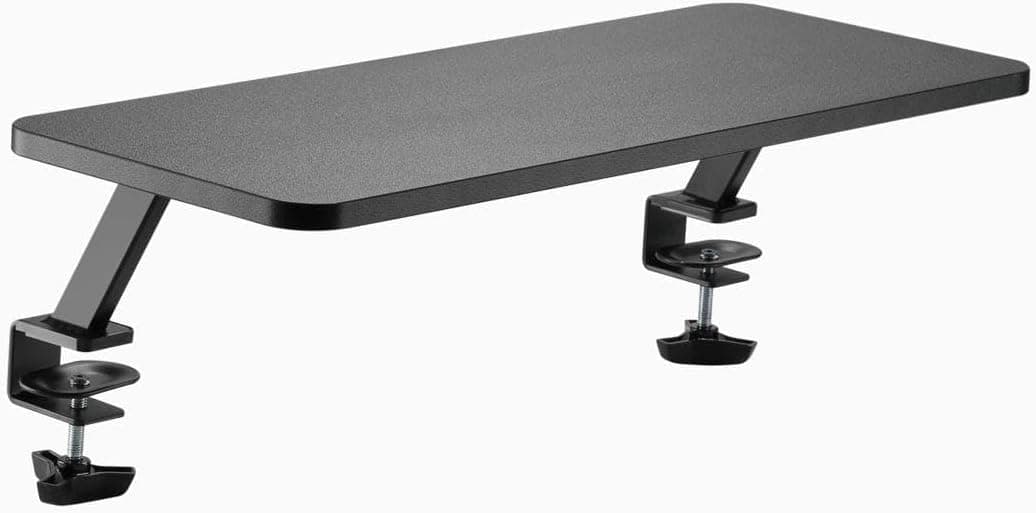
+ Double width shelf holds two monitors on one level surface
From our guide: Best Monitor Risers for Desks (2026)
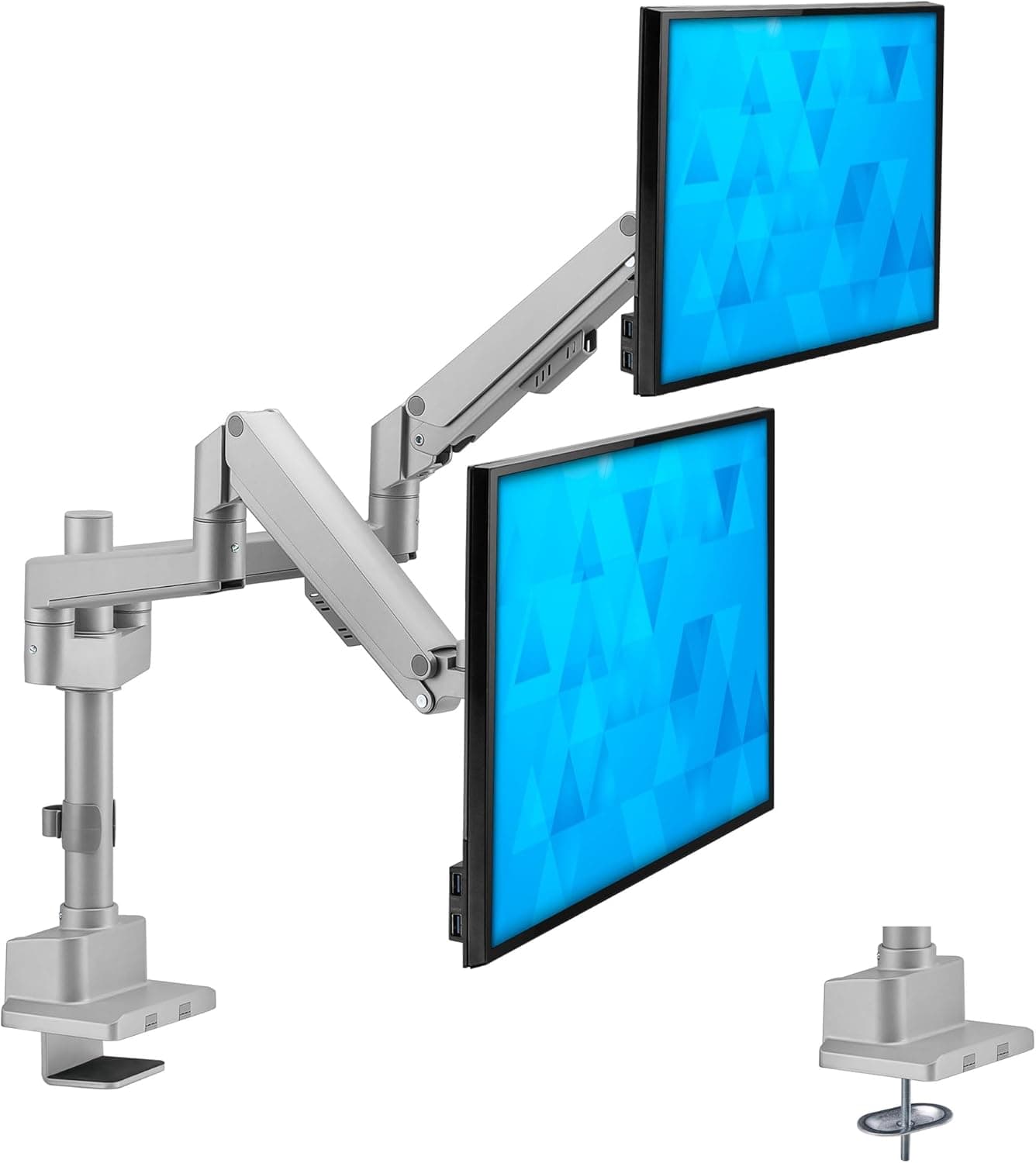
+ Gas spring arms move screens up and down with light pressure
From our guide: Best Dual Monitor Arms for Home Offices (2026)
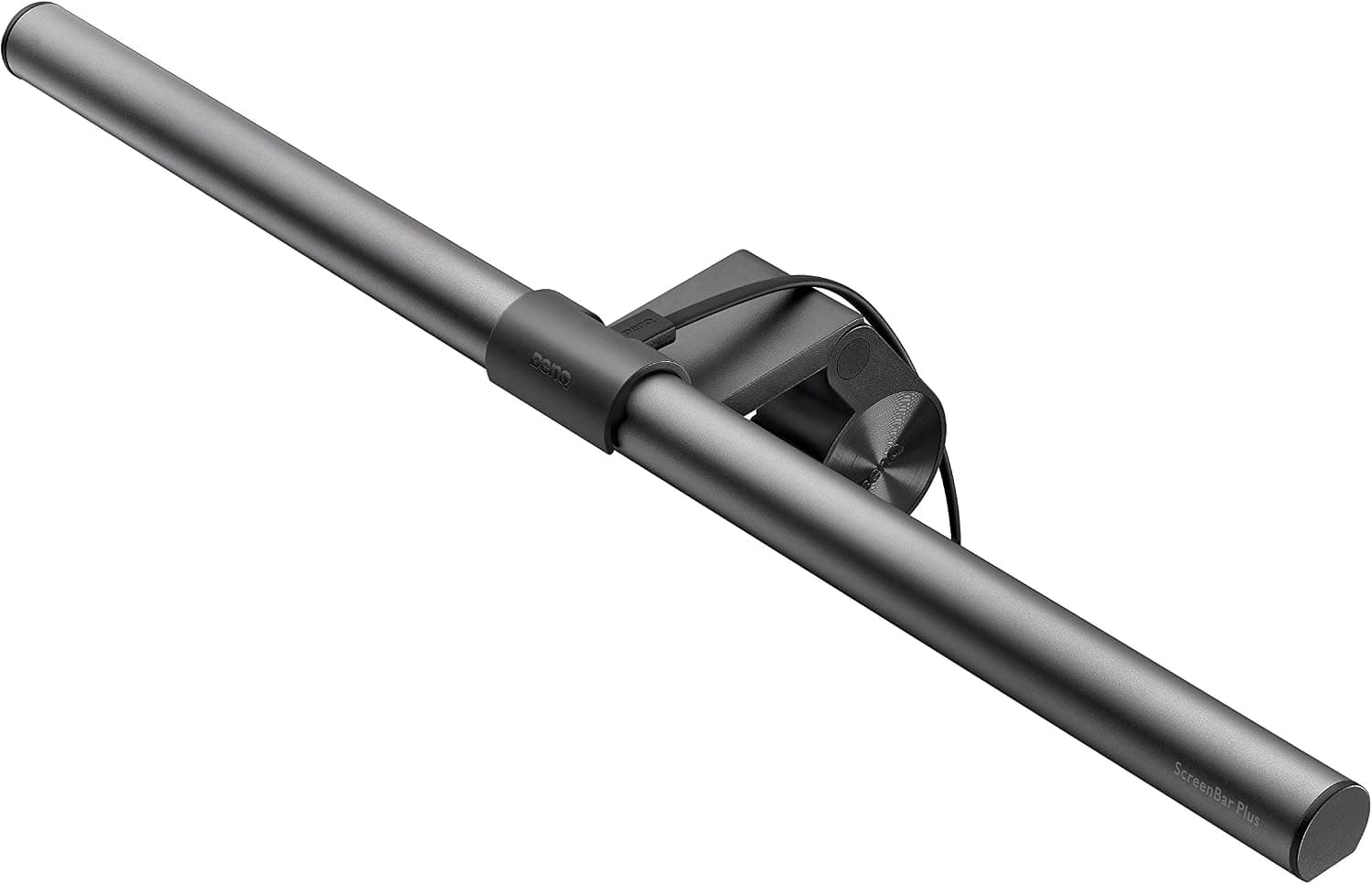
+ Desktop dial controls brightness and color without reaching up
From our guide: Best Monitor Light Bars (2026)
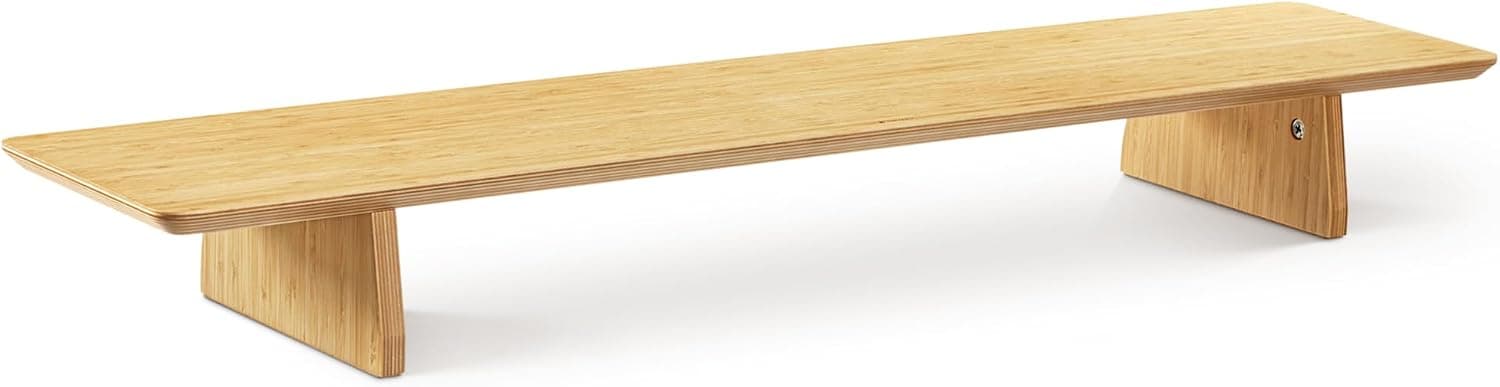
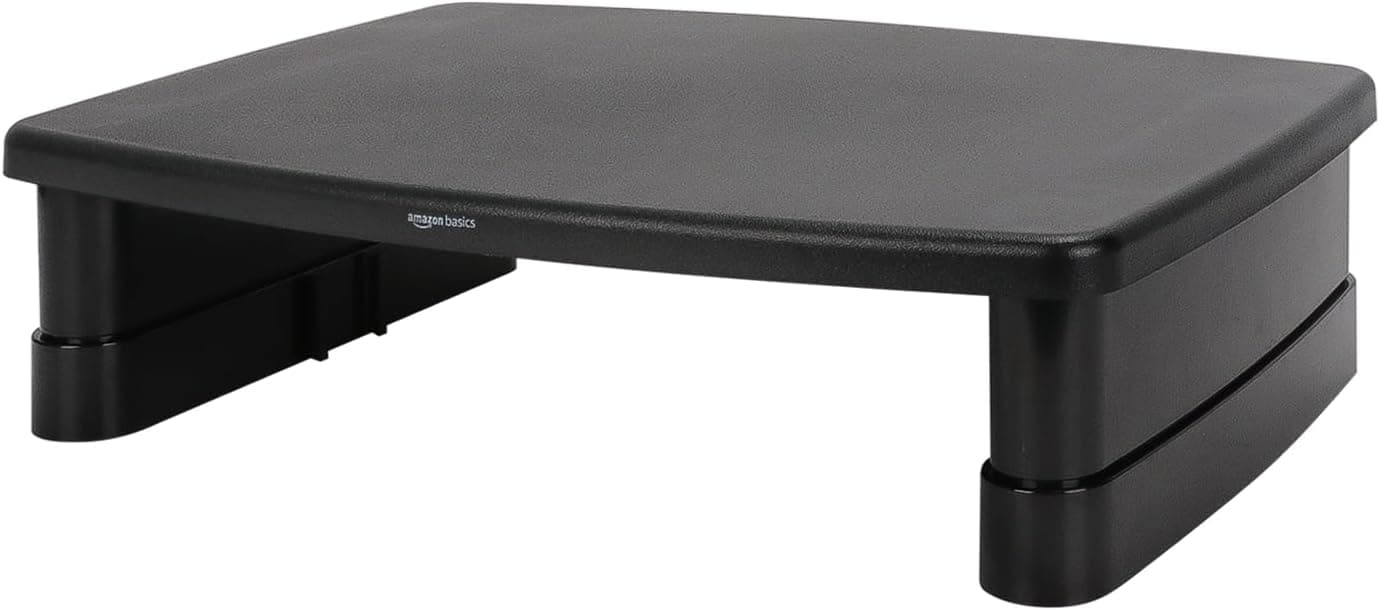
+ 3-level stackable design lets you pick a low, medium or tall height
From our guide: Best Monitor Risers for Desks (2026)
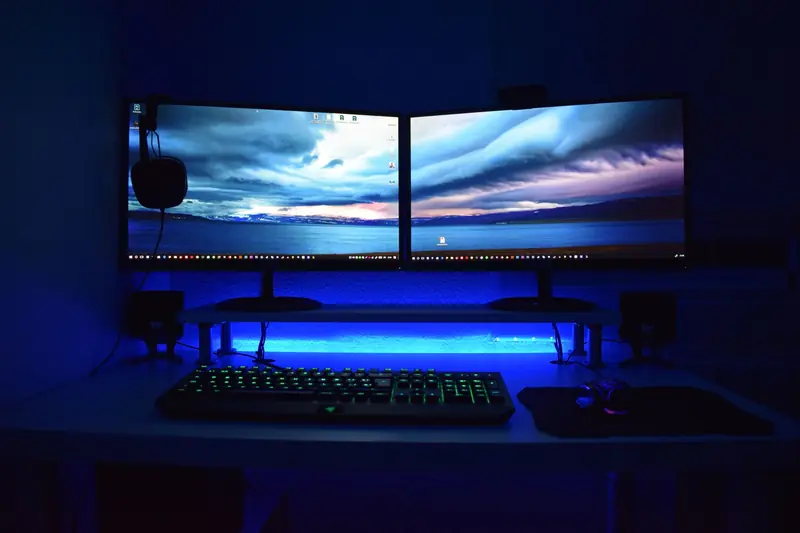
Decide which screen is primary
The first decision is which screen is primary. If you spend most of your time on one screen, place it directly in front of you so your neck stays neutral, and put the second monitor to the side angled slightly inward. If you truly split your attention evenly between both, center yourself on the seam where the two screens meet so you turn your head equally in each direction.
Match the height of both monitors
Match the height of both monitors so their tops line up at roughly eye level. A mismatch in height forces your neck to adjust every time you glance between screens, which adds up over a full day. If your two monitors are different sizes, align them by the top edge or by the center of the content you look at most.
Keep both screens at the same distance
Keep both screens at about the same distance from your eyes, roughly an arm's length. When a side monitor sits farther back than the primary, your eyes have to refocus each time you switch, which contributes to fatigue. Angling the second screen slightly toward you helps keep the distance and viewing angle consistent.
Tune your software to match your hardware
Finally, tune your software to match your hardware. Arrange the display order in your settings so your mouse moves between screens in the direction they physically sit. Learn a few window-snapping shortcuts so you can place apps quickly. A monitor arm or two can also free up desk space and make it easy to fine-tune position until both screens feel effortless to use.
Frequently asked questions
How should I position two monitors? Center your primary screen directly in front of you with the second angled to the side, or center yourself on the seam between them if you split attention evenly.
Why does switching between my two monitors strain my neck? A height mismatch forces your neck to adjust every time you glance between them. Align both monitors so their tops line up at roughly the same eye level.
Should both monitors be the same distance from me? Yes, roughly an arm's length each. A side monitor set farther back makes your eyes refocus every time you switch, contributing to fatigue.
Do I need a monitor arm for a dual-monitor setup? Not required, but it frees desk space and makes it easy to fine-tune position until both screens feel effortless to use.
Popular right now
- Best Ergonomic Split Keyboards (2026)Buying guide
- Best Under-Monitor Storage Organizers (2026)Buying guide
- Best Monitor Privacy Filters (2026)Buying guide
- Best Corner Desks for Home Offices (2026)Buying guide
- Best UPS Battery Backups for Home Offices (2026)Buying guide
- Docking station explainedGlossary
Based on the last 28 days of search and visitor data.