Standing Desk Maintenance Tips: What to Check and How Often
Published How we research
A standing desk needs very little upkeep: tighten the hardware every few months, keep the desktop and frame clean, stay under the weight rating and keep cables free to move. Most problems that owners blame on the motor come from loose bolts, pinched cables or an uneven load, so a short routine prevents the majority of them.
Products from this article
The highest-scoring picks from the buying guides this article links to. Scores are our editorial assessment, not customer ratings.
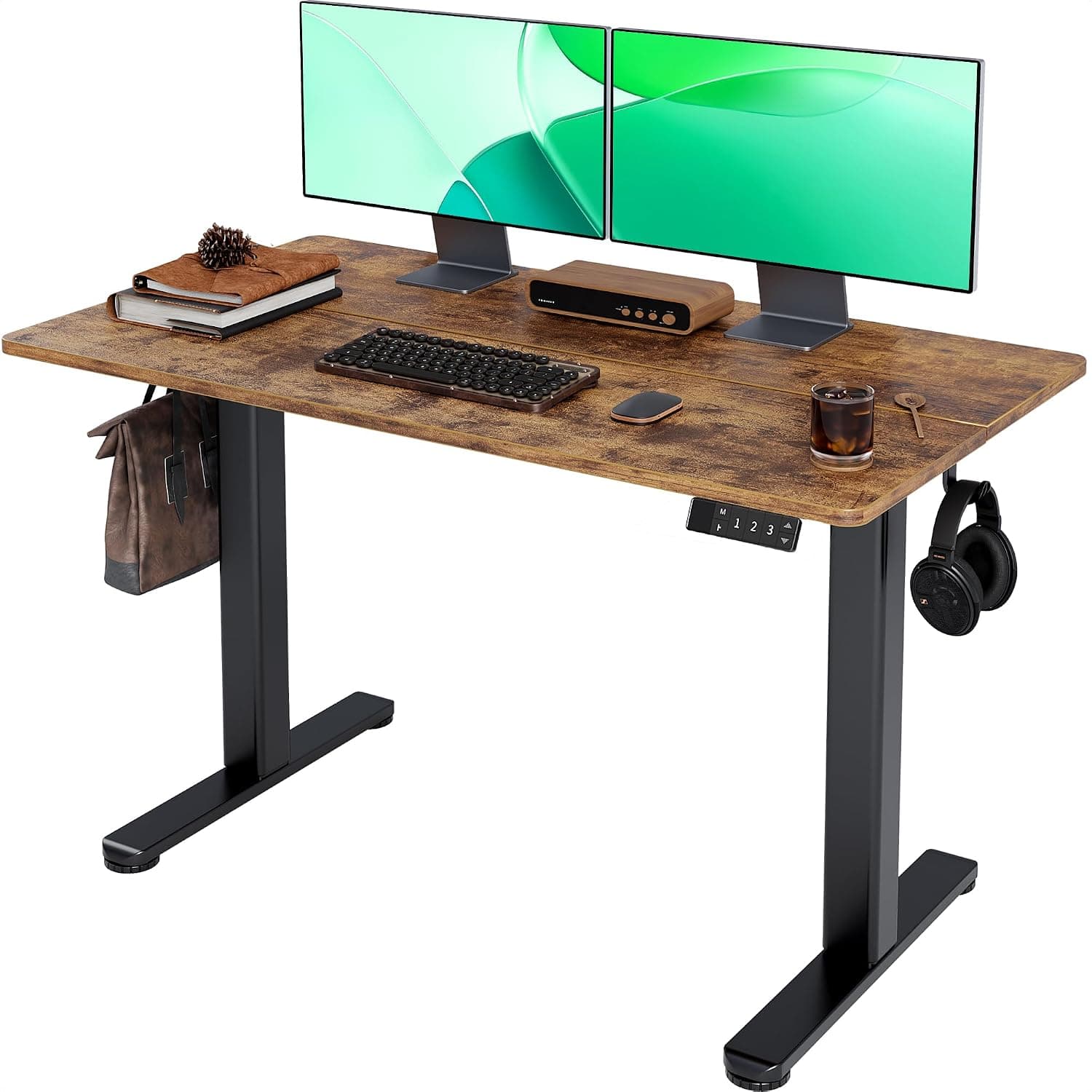
+ 4 memory presets store your sitting and standing heights so switching stays quick and repeatable
From our guide: Best Standing Desks for Home Offices (2026)
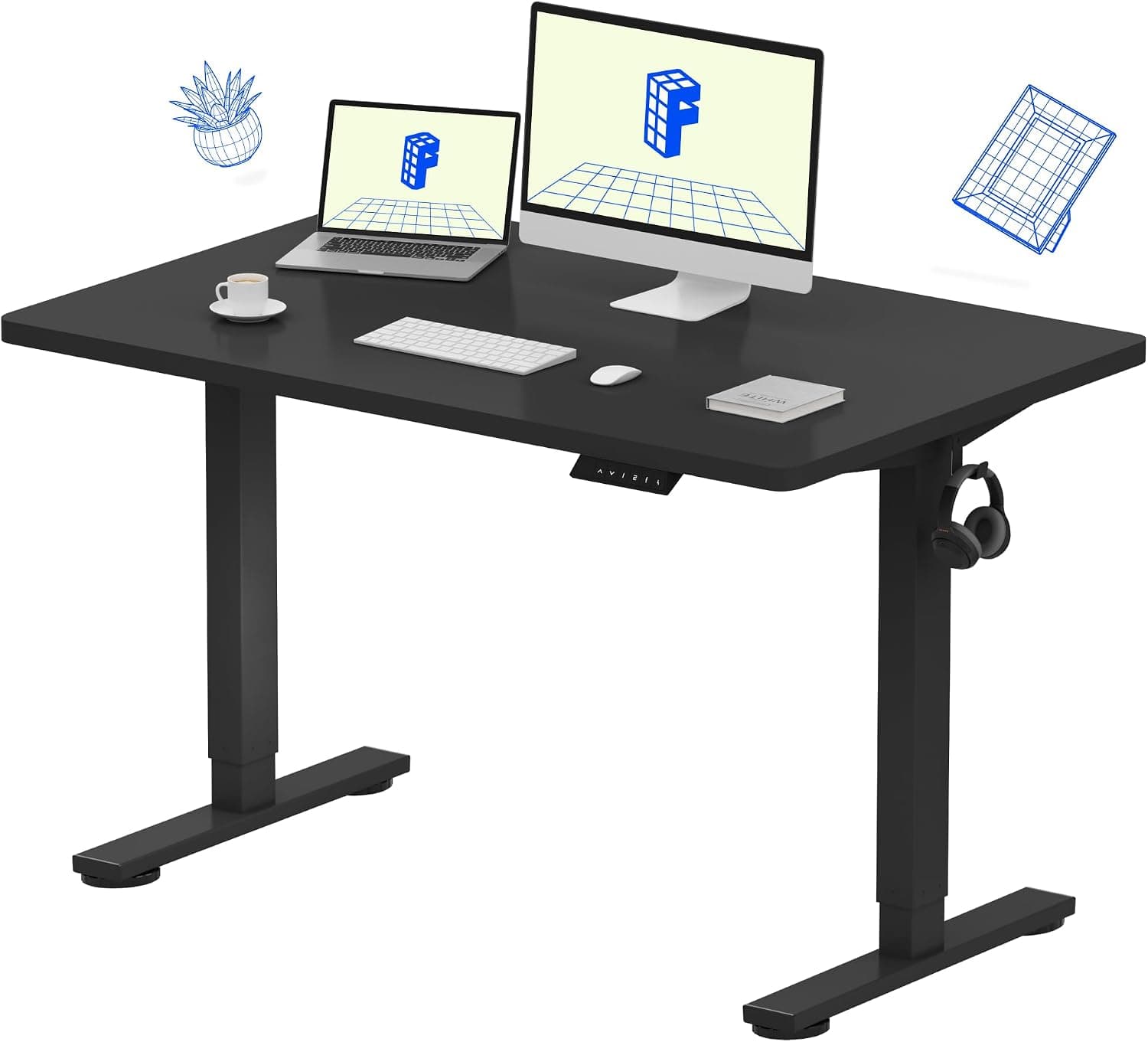
+ Dark cherry top suits classic study rooms with wood shelves and leather chairs
From our guide: Best Electric Adjustable Desks for Home Offices (2026)
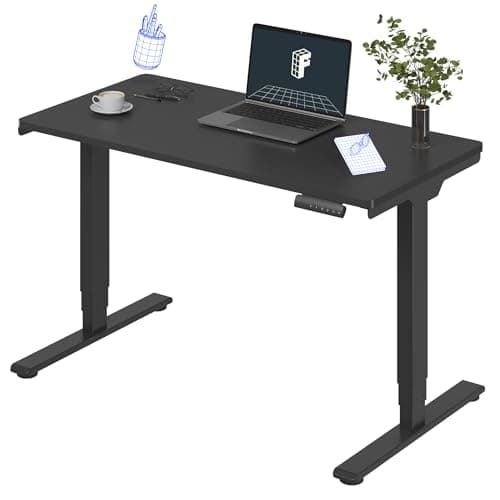
+ Electric lift raises a full dual-screen setup without the manual effort of spring risers
From our guide: Best Standing Desk Converters for Home Offices (2026)
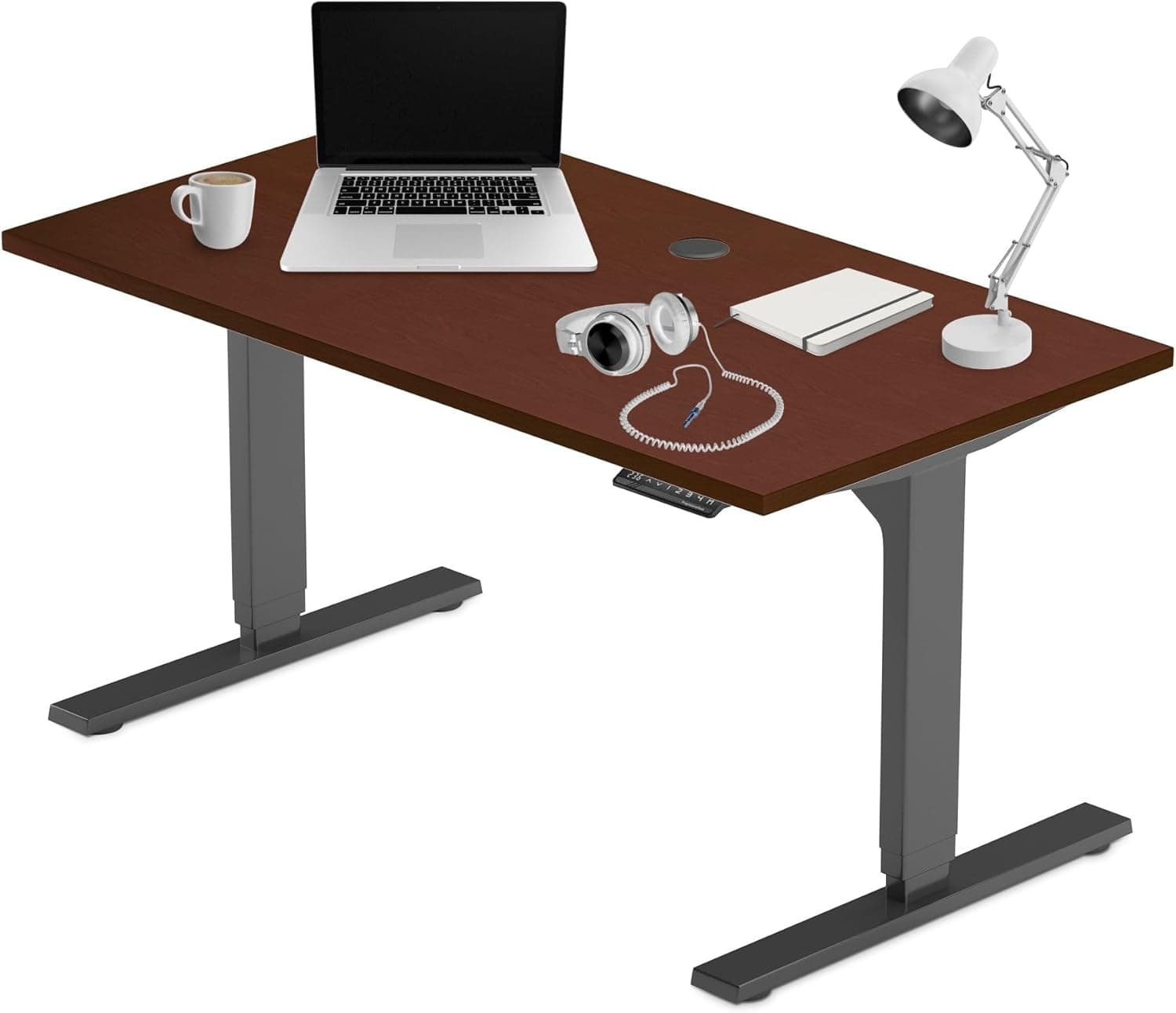
+ 3-stage legs give a height range of 23.6 to 48.8 inches, which covers short and tall users
From our guide: Best Standing Desks for Home Offices (2026)

Tighten the hardware every few months
Frame bolts loosen slowly because the desk lifts and lowers many times and carries the vibration of typing. Every three to four months, lower the desk to its lowest position and check the bolts that join the legs to the crossbar, the feet to the legs and the frame to the desktop. A hex key (Allen key) is usually all you need, and most desks ship with one.
Snug is the goal, not maximum force. Overtightening can strip threads in particleboard desktops or crush the inserts that hold the screws. If the desk wobbles at full height after tightening, the cause is often the leg extension rather than a loose bolt, which is a stability issue covered in a separate fix.
Clean the desktop and the frame
Wipe the desktop with a soft cloth dampened with water and a drop of mild dish soap, then dry it. Laminate and veneer surfaces dislike harsh solvents and standing water, so avoid abrasive pads and keep spills away from the edges, where moisture can swell the core. Bamboo and solid wood surfaces benefit from being wiped dry right away.
For the frame, wipe the visible leg sections with a dry or slightly damp cloth. Dust and grit on the inner telescoping sections can add friction as the desk moves, so wipe the lower part of each leg stage when the desk is at its highest position and the surfaces are exposed. Do not spray liquid cleaner directly onto the legs, the control panel or the control box.
Look after the motor and control box
Electric standing desks use sealed lift columns, and most do not need oil or grease from the owner. Do not add lubricant unless the manufacturer's manual tells you to, because the wrong product can attract dust or damage plastic parts. The simplest care is to respect the duty cycle: many desks are rated for a few minutes of continuous movement followed by a rest, so avoid running the desk up and down repeatedly in a row.
Keep the control box and handset dry and clear of dust, and make sure the box is mounted securely under the desktop so that it does not hang from its cable. If the desk shows an error code or stops at a height, check your manual: the reset routine differs between brands, and many involve holding the down button for several seconds until the desk lowers fully and resets. Memory presets may need to be saved again afterwards.
Keep the load balanced and under the rating
Every standing desk has a stated weight capacity, and that number includes everything on the surface: monitors, arms, a PC tower, a printer and any shelf or riser. Add it up once, and leave a margin, because a desk working near its limit moves slower and wears faster. Spread heavy items across the desktop rather than stacking them at one edge or one corner.
Monitor arms that clamp to the back edge put a leveraged load on the desktop, so check that the clamp is tight and that the desktop edge is not showing cracks or dents. A heavy dual-arm setup is easier on the desk when the weight is centered over the frame.
Manage cables so they do not pinch or pull
The most common avoidable damage is a cable caught between the moving legs or the desktop and a wall. Before raising or lowering the desk, look at the path of every cable: the power cord, the handset cable and the cords for monitors and chargers all need enough slack to travel the full height range. Leave a loose loop rather than a taut line.
Cable trays, sleeves and clips under the desktop keep the bundle together and give it room to move. Fasten cables to the moving part of the desk rather than to the wall or floor, so that they rise and fall with the desktop instead of being stretched.
Check the feet, floor and wall clearance
Most frames have adjustable glides on the feet. If the desk rocks slightly, adjust the glides until all four sit firmly on the floor, then recheck with a level or by pressing on each corner. On carpet, a desk can sink unevenly under the weight, so a hard mat or board under the feet can help.
Also check the clearance around the desk. The desktop should be free to travel its full range without touching a wall, window sill, shelf or drawer unit, and the underside of the desk should be clear of chair armrests when the chair is pushed in at its lowest height.
A simple seasonal routine
Once a season, lower the desk fully, tighten the hardware, wipe the frame, inspect the cables and the control box mount, and re-add up the weight on the desktop. Raise and lower the desk through its full range and listen for new noises, uneven speed or one side moving ahead of the other. Any of these is worth looking at before it turns into a repair.
If the desk is still under warranty and something is clearly wrong with the motor, legs or control box, contact the seller rather than opening the unit yourself. Keep your order details and the model name from the underside of the desktop handy.
Frequently asked questions
How often should I maintain a standing desk? A quick check of the bolts and cables every three to four months is enough for most home offices. Wipe the desktop whenever it gets dirty.
Do I need to oil the legs? Generally no. The lift columns are sealed, and unless your manual calls for a specific lubricant, leave them alone.
Why does my desk stop moving or beep? Common causes include an overloaded desktop, a pinched cable, a collision sensor trigger or a control box that needs a reset. Check the load and the cables first, then follow the reset steps in your manual.
Can I use a standing desk mat or converter without extra care? Yes, but a converter adds its own weight and its own moving parts, so include it in the weight total and check its hardware at the same time.
Popular right now
- Best Ergonomic Split Keyboards (2026)Buying guide
- Best Under-Monitor Storage Organizers (2026)Buying guide
- Best Monitor Privacy Filters (2026)Buying guide
- Best Corner Desks for Home Offices (2026)Buying guide
- Best UPS Battery Backups for Home Offices (2026)Buying guide
- Docking station explainedGlossary
Based on the last 28 days of search and visitor data.