Monitor Arm vs Monitor Stand
Published How we research
The built-in stand is free, simple, and adequate for many people, especially with height adjustment, but it occupies desk space and offers limited range of motion. A monitor arm clamps to the desk, frees that footprint, and lets you tilt, rotate, and reposition the screen freely, at the cost of extra money, a sturdy desk to clamp to, and checking your monitor's mounting pattern. Stick with the stand if it reaches a comfortable height with desk space to spare; choose an arm to reclaim space, gain viewing distance, or run multiple monitors. Once you decide to raise your monitor to a healthier height, the next question is how to mount it. The two main options are the stand that comes attached to most monitors and an aftermarket monitor arm that clamps to your desk. Both can get your screen to eye level, but they differ in flexibility, desk space, and cost, and the right pick depends on how you work.
Products from this article
The highest-scoring picks from the buying guides this article links to. Scores are our editorial assessment, not customer ratings.
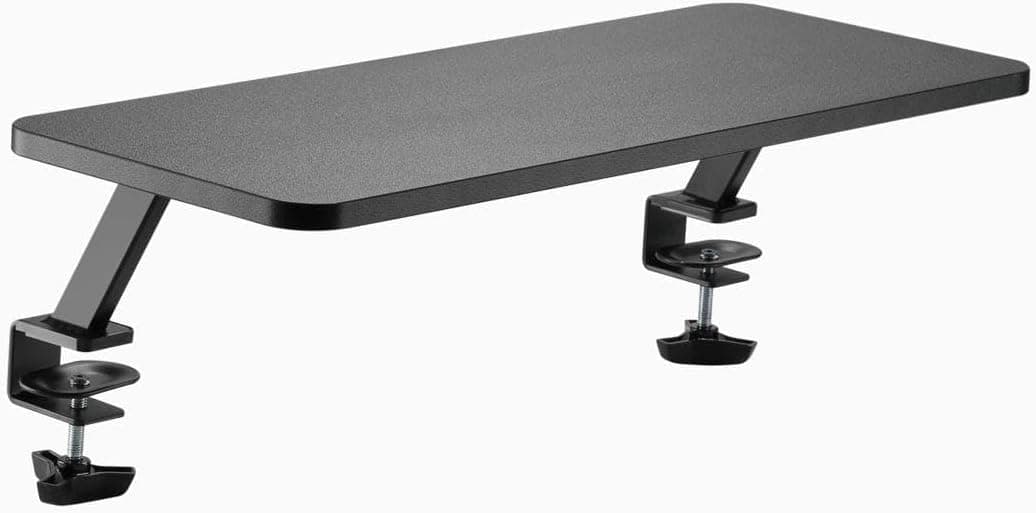
+ Double width shelf holds two monitors on one level surface
From our guide: Best Monitor Risers for Desks (2026)
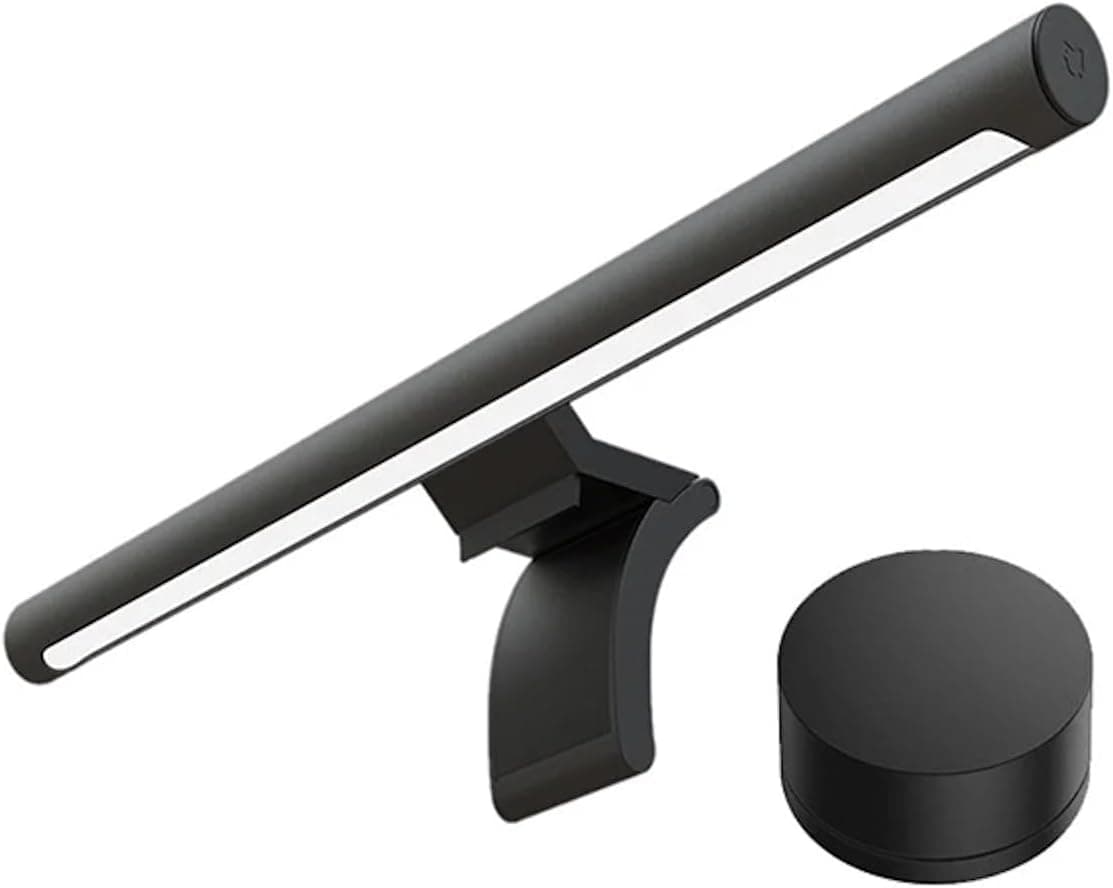
+ Xiaomi brand brings clean industrial design and solid quality control
From our guide: Best Screen Glow Bars for Monitors (2026)
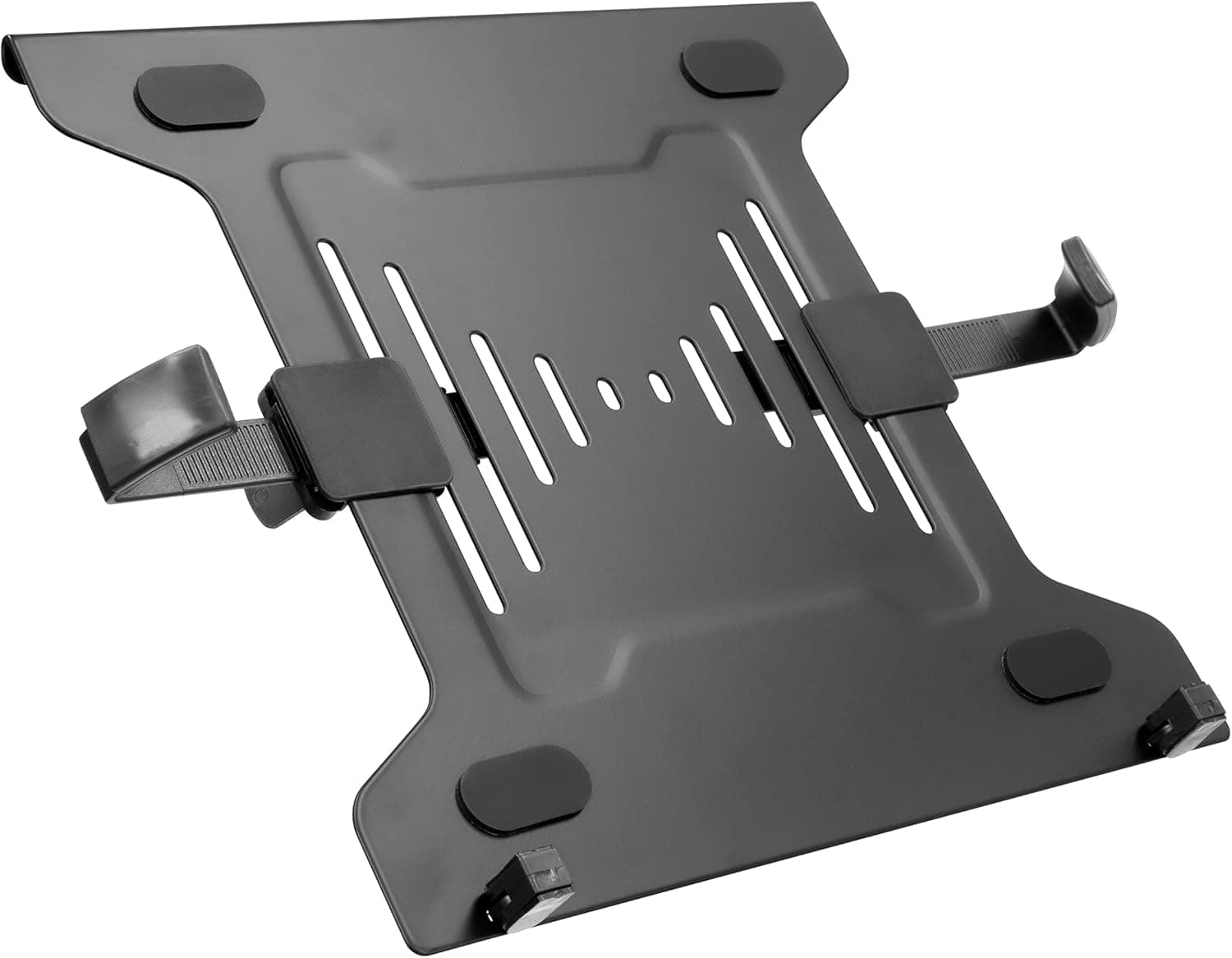
+ Turns an existing monitor arm into a floating laptop holder
From our guide: Best Sit-Stand Laptop Mounts for Home Offices (2026)
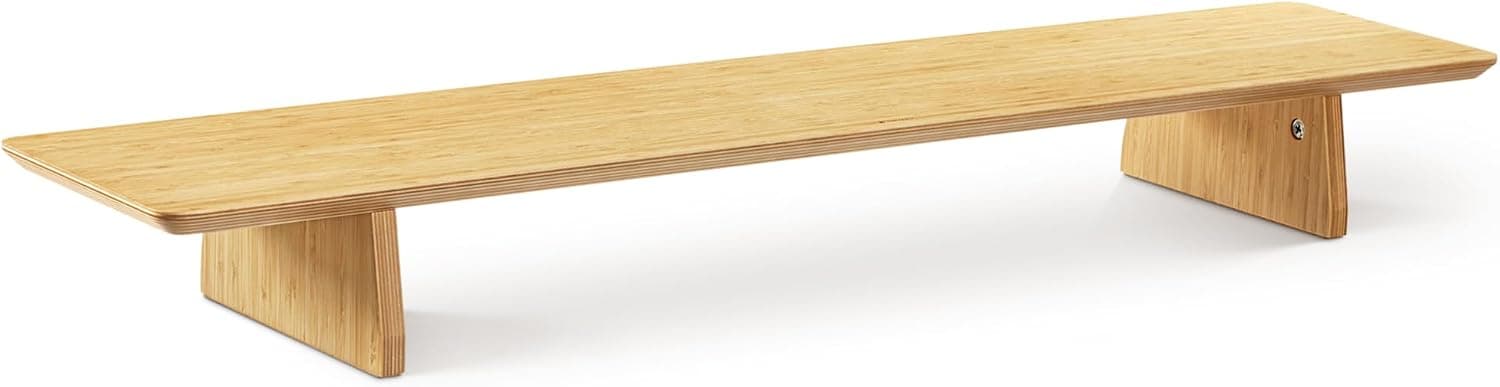
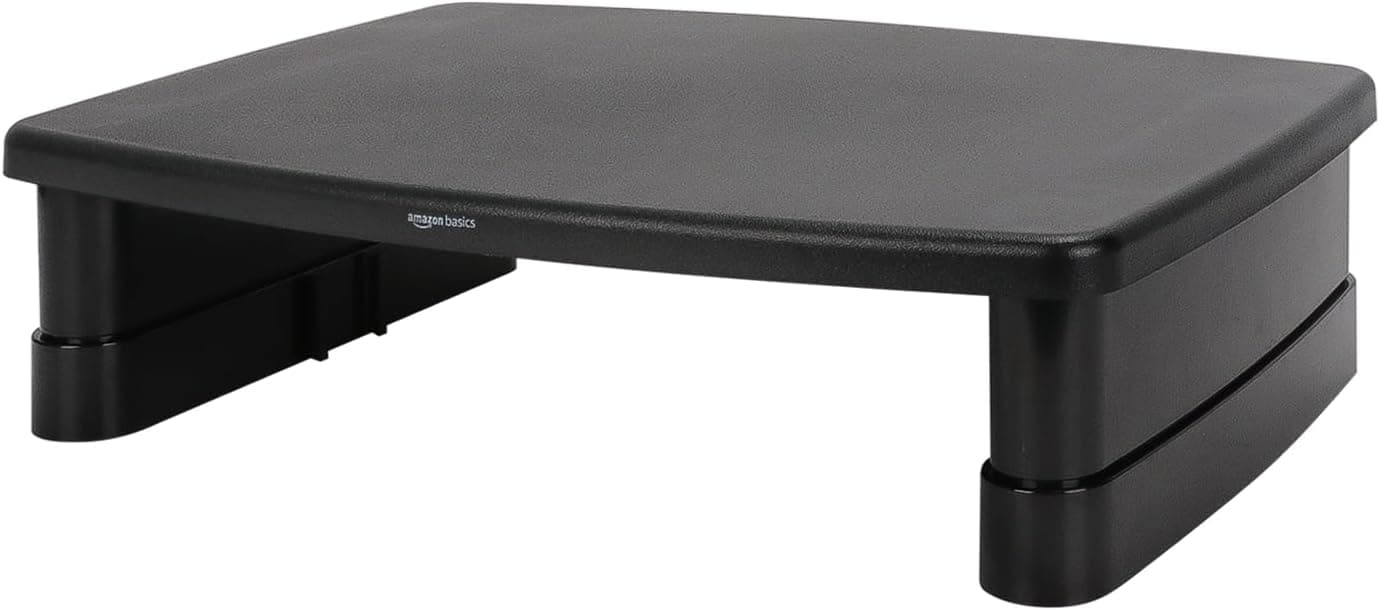
+ 3-level stackable design lets you pick a low, medium or tall height
From our guide: Best Monitor Risers for Desks (2026)
The built-in stand: simple and free
The built-in stand is the simplest and cheapest option, since it comes with the monitor at no extra cost. For many people it is perfectly adequate, especially if it offers height adjustment. The main limitations are that it occupies a footprint on your desk and usually offers a restricted range of movement, so you cannot easily push the screen back, pull it forward, or swing it aside.
A monitor arm: flexibility at a cost
A monitor arm clamps to the edge or feeds through a grommet hole, lifting the screen off the desk entirely. This frees up the space the stand would occupy, which is valuable on smaller or shallower desks where you can push the monitor back to gain viewing distance. Arms also let you reposition the screen freely, tilting, rotating, and moving it with a light touch, which is handy if you share the desk or switch between tasks.
The tradeoffs for an arm
The tradeoffs for an arm are cost and setup. You pay extra, you need a desk sturdy enough to clamp onto, and you should check that your monitor uses the standard mounting pattern most arms require. There is also a small installation step, though it is usually straightforward. For a single monitor that stays put, these tradeoffs may not be worth it.
A rule of thumb for choosing
As a rule of thumb, stick with the built-in stand if it reaches a comfortable height and you have desk space to spare. Choose a monitor arm if you want to reclaim desk space, need extra viewing distance on a shallow desk, run multiple monitors, or frequently reposition your screen. Matching the choice to your actual needs saves both money and frustration.
Frequently asked questions
Is a monitor arm worth it over the built-in stand? If you want to reclaim desk space, need more viewing distance on a shallow desk, run multiple monitors, or frequently reposition your screen. For a single monitor that stays put, the built-in stand may be enough.
What are the downsides of a monitor arm? Extra cost, needing a desk sturdy enough to clamp onto, and confirming your monitor uses the standard mounting pattern most arms require.
Does a monitor stand take up more desk space than an arm? Yes. A built-in stand occupies a footprint on the desk, while an arm lifts the screen off the desk entirely, freeing that space, valuable on smaller or shallower desks.
Can a monitor arm help with a shallow desk? Yes. It lets you push the monitor back to gain viewing distance that a fixed stand's footprint would not allow on a shallow desk.
Popular right now
- Best Ergonomic Split Keyboards (2026)Buying guide
- Best Under-Monitor Storage Organizers (2026)Buying guide
- Best Monitor Privacy Filters (2026)Buying guide
- Best Corner Desks for Home Offices (2026)Buying guide
- Best UPS Battery Backups for Home Offices (2026)Buying guide
- Docking station explainedGlossary
Based on the last 28 days of search and visitor data.